
Signing in to Campus Ghost
A clear, step-by-step guide to signing in to campus ghost on Campus Ghost — with screenshots you can follow along.

Step-by-step guide
- 1
Open Campus Ghost
Launch the Campus Ghost app on your phone, or open campusghost.in in your browser. If you don't have an account yet, tap Create account and verify with your email first.

- 2
Choose your login method
On the sign-in screen, enter your email ID and password — we send a one-time login link or verification code to the email on file.
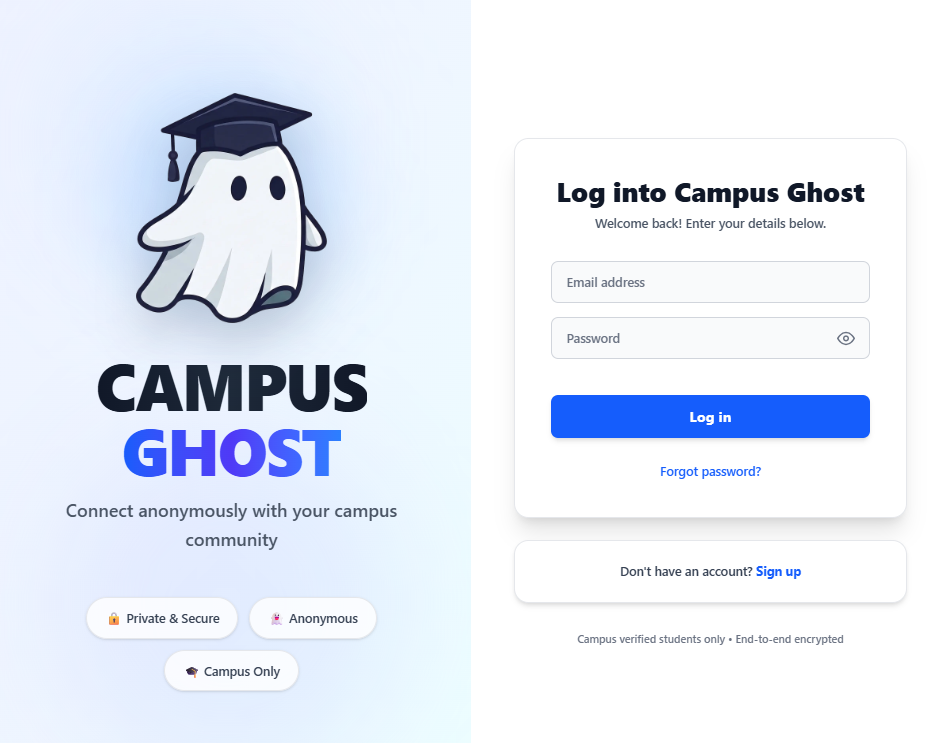
- 3
Enter your email
Type the email address you used to register (for example, yourmailid@gmail.com). Double-check the spelling — this is the address that receives your login code.
- 4
Open the login link from your inbox (or Spam folder)
Within a minute you'll receive an email from campusghost.official@gmail.com. If you do not see the email in your primary inbox, please check your Spam or Junk folder and mark it as 'Not Spam'. Tap the link on the same device you started signing in from.
- 5
You're in — as a Ghost
Campus Ghost will drop you back into your feed as your Ghost Identity. Your real name, roll number, and email are never shown on any post or comment.
Tips from the Campus Ghost team
- Can't find the email? Always check your Spam, Junk, or Promotions folder.
- Add campusghost.official@gmail.com to your contacts or mark it as 'Not Spam' so future emails land in your main inbox.
- Make sure to open the login link on the same device where you requested it.
Frequently asked questions
Is this feature free to use?
Will other students see my real identity?
What if something goes wrong?
Screenshot gallery
Tap any image to open it full-size.